Call History, Recordings & Voicemail
Review what happened on each call and follow up with customers.
Quick start
- Go to Dashboard → Calls.
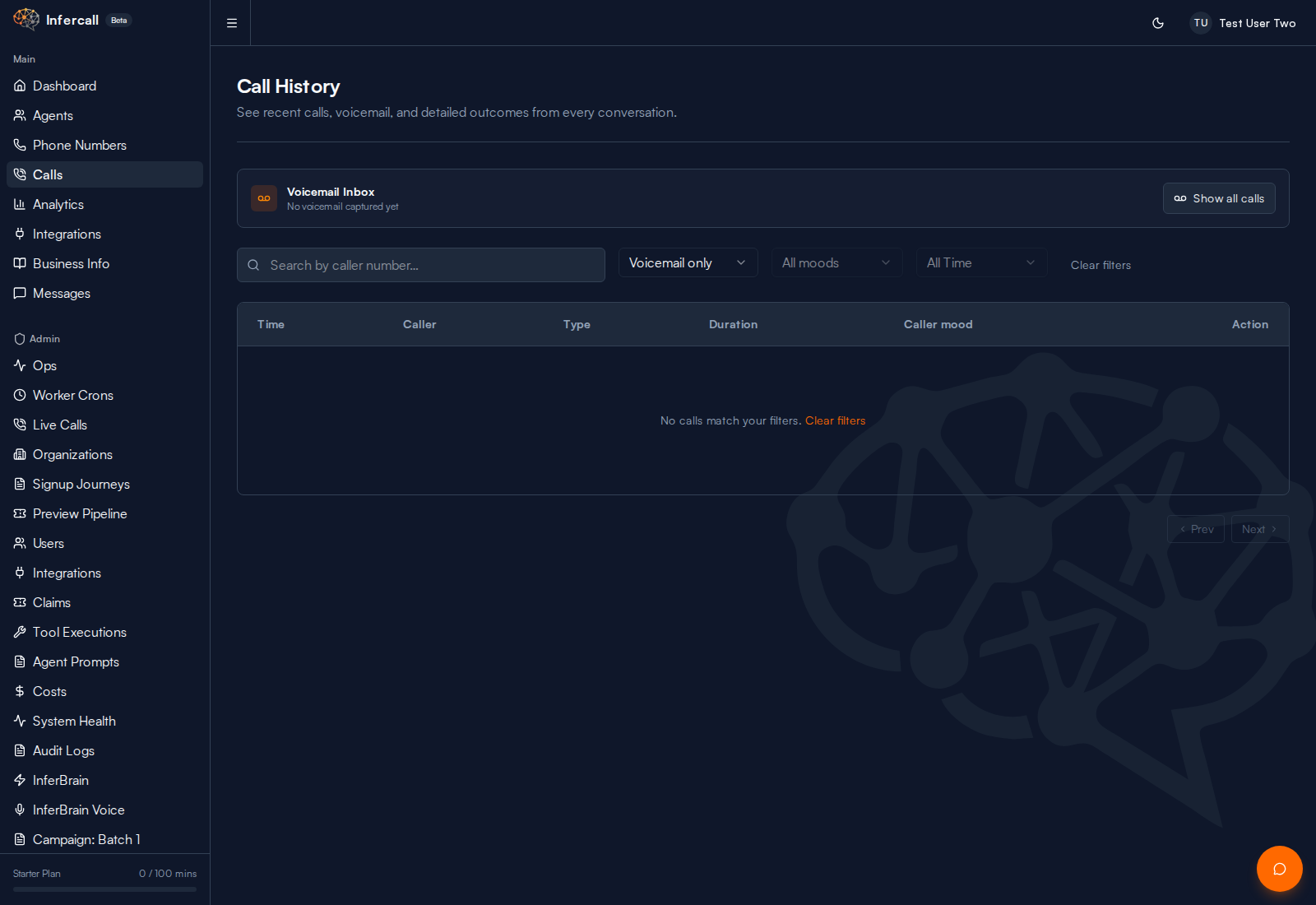
- Use filters to focus on all calls, recorded calls, messages, or voicemail items.
- Open the call and review what happened.
- Call the customer back, action the job, or mark the follow-up done.
Need help with transfer or voicemail setup? Contact support@infercall.com.
1) Understand what happened
Infercall separates the important call outcomes so you know the right next step.
- Transferred to owner means the caller reached the phone number you set for handoff.
- Message taken means Infercall collected details for you to follow up.
- Voicemail recorded means a transfer did not connect and the caller left a recording through Infercall.
- Recorded calls are calls with saved audio ready to play from the call detail view.
- Search + time filters help find the right caller fast.
2) Call detail → Playback and actions
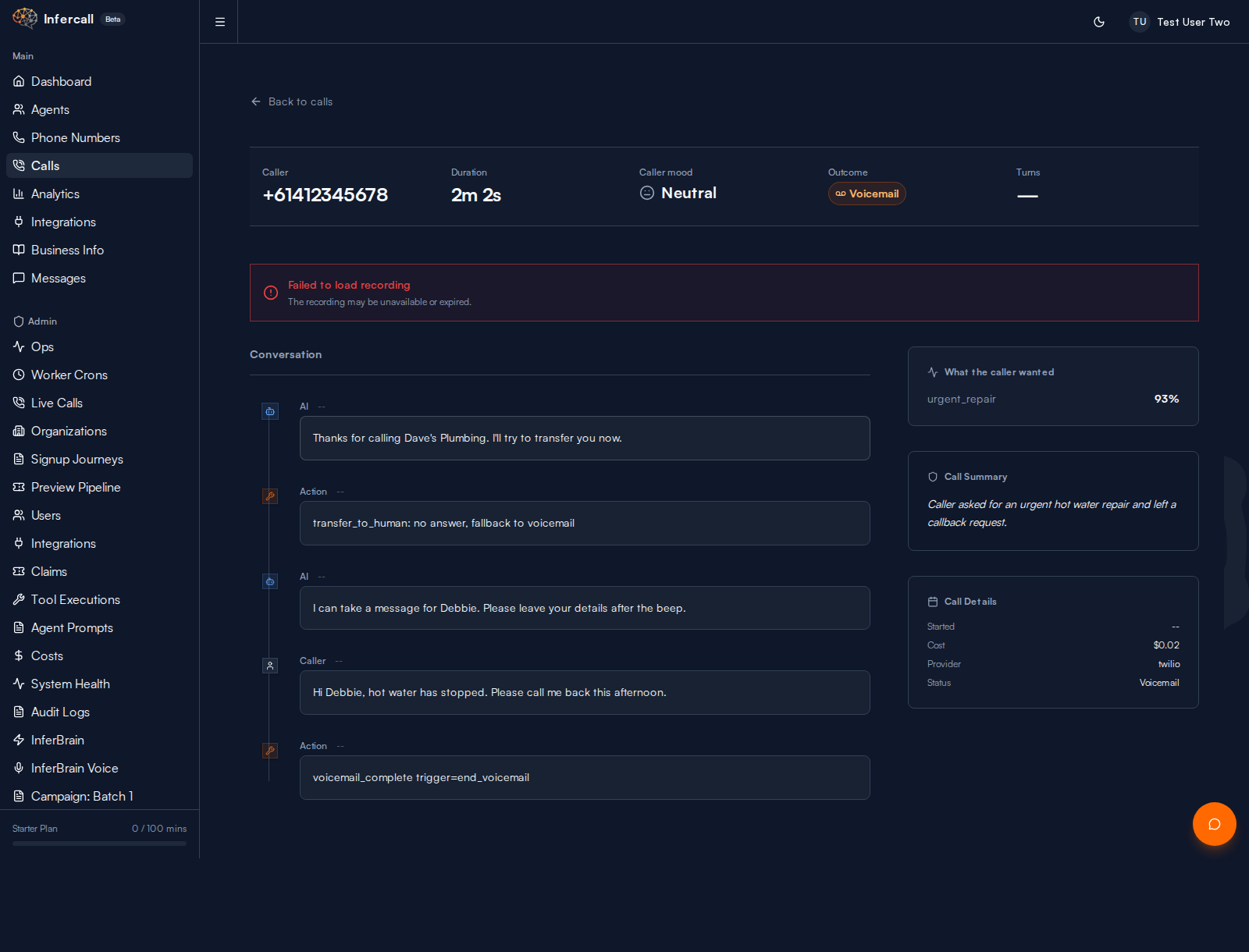
Open a call detail page to see what happened, then decide the next action with confidence.
- Recording area shows playback when saved audio is available.
- Conversation timeline shows message, transfer, and voicemail steps.
- Summary and intent help prioritize callbacks.
Troubleshooting
- No recorded voicemails showing up: make sure failed transfers are set to recorded voicemail, and remember that your phone's own voicemail is separate from Infercall.
- No recorded calls showing up: make sure call recording is turned on and the call has had a few minutes to finish processing.
- No notifications: check that a notification email is set on your agent's transfer or message settings.
- Can't play recording: check your data retention settings haven't expired the recording.